
Free Unlimited Video Face Swap Online – Up to 5 Minutes in HD
Swap faces in 30-second clips, one-minute scenes, or longer videos. Upload your footage and a clear face photo, then choose the people and range to edit.
Add original media
Add target face
Create face swap
Result
Creation data is automatically deleted after 1 day. Please save your results promptly.
VIDEO FACE SWAP
How to Swap a Face in a Video Online
Start with the footage you want to edit. The AI video face swap tool uses a face photo as the replacement and applies it to a person in the selected part of your video. You control which clip and which face the task uses.
- 1
Add your source video
Choose the Video tab and upload an MP4, MOV, AVI, or WebM file. Preview the footage to find a moment where the person you want to change is visible.
- 2
Add the replacement face
Upload a clear portrait. Single Face mode replaces one person; Multiple Faces lets you assign a separate photo to each selected person in a group clip.
- 3
Select the range and create
Set the start and end points on the timeline. Sign in to upload and create the task for the selected scene.
- 4
Review and download
Open the completed result in your history, play the video, and download the file. Choose another range when you need a different moment from the source.
A photo supplies the face; the video supplies the motion.
An “image to video face swap” can mean two different jobs. This workflow replaces a face in footage you already have. It does not create a moving scene from one still image.
FREE VIDEO FACE SWAP
Free Unlimited Video Face Swap Online
Make free video face swaps online with an existing clip and a clear replacement face photo. Choose the scene, match one person or several, and create the video in the studio.
Return with another clip whenever you have a new idea. Make a group greeting, change a face in a reaction, or edit a scene from a longer video, then review and download each completed result. Sign in to create and access your history.
GROUP VIDEO
Swap Multiple Faces in One Video
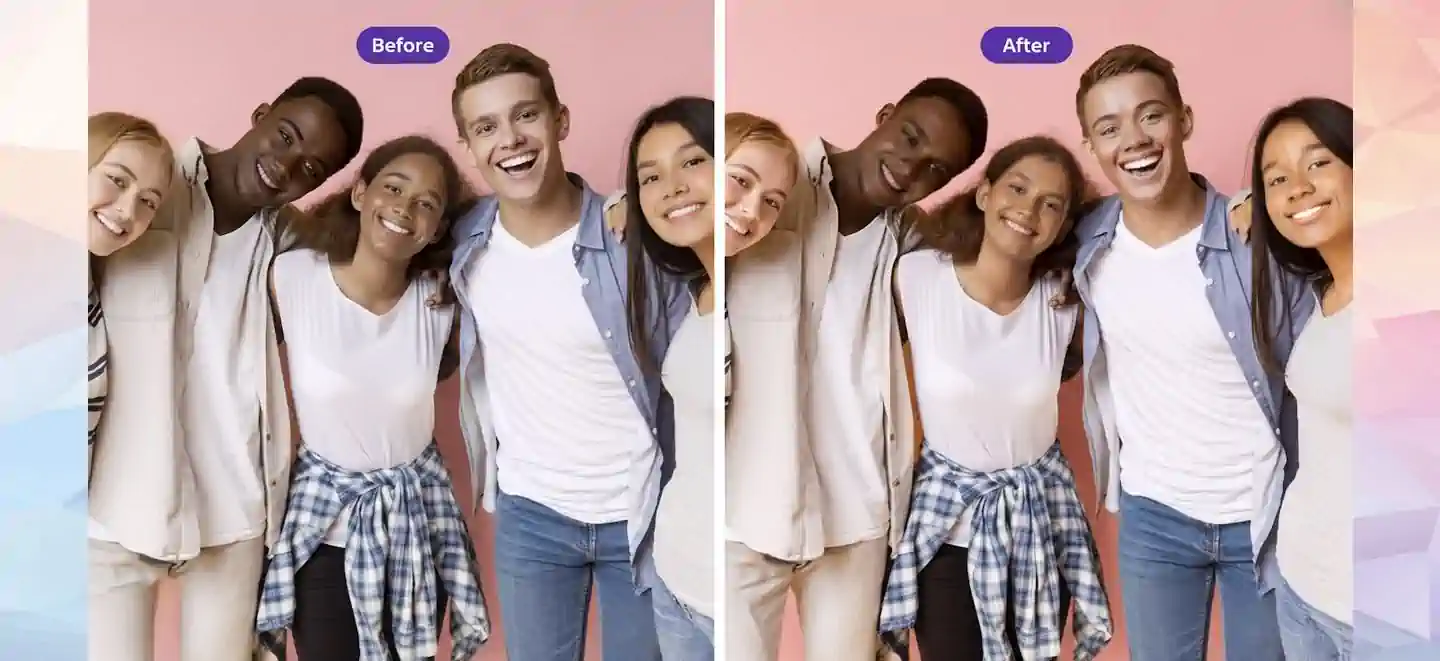
A group scene needs more control than a one-face swap. In Multiple Faces mode, choose a frame where the people you want to change are clearly visible. The studio detects faces in that frame so you can decide which person receives which replacement portrait.
For a two-person clip, give the first person one face photo and the second person another. Leave anyone else without a replacement if they should stay as they are. Review the assignments before creating the selected range, especially when people cross paths or turn away from the camera.
Use it for a cast scene, a group greeting, or a short skit where each person needs a different face. The extra step is the face-to-face mapping; upload, range selection, and result review remain in the same studio.
VIDEO LENGTHS
Video Face Swap by Duration
A long video face swap starts with your source footage and the range you choose to edit. The uploaded file and the processed range can have different lengths. Pick the whole scene when you need continuous coverage, or trim to the part where the person appears.
30-Second Video Face Swap
A 30-second clip can hold a full reaction, greeting, or short take. Select the whole clip when every moment matters, or trim to the few seconds where the face is visible.
One-Minute (60-Second) Video Face Swap
For a one-minute scene, set a continuous 60-second range when the same person appears throughout. Preview the beginning, middle, and end to check face visibility; select a shorter segment if only one part needs editing.
Five-Minute Video Face Swap
A five-minute scene may include a conversation, performance, or walkthrough. Mark the exact start and end when you need one continuous result, then preview the chosen range before creating.
Ten-Minute and Long Video Face Swap
A ten-minute source can be handled as one longer range or several focused scenes. Select the full video for continuous coverage, or split it into separate ranges when different moments need different faces. Review each completed result individually.
PHOTOS & BATCHES
Face Swap Photos and Image Batches
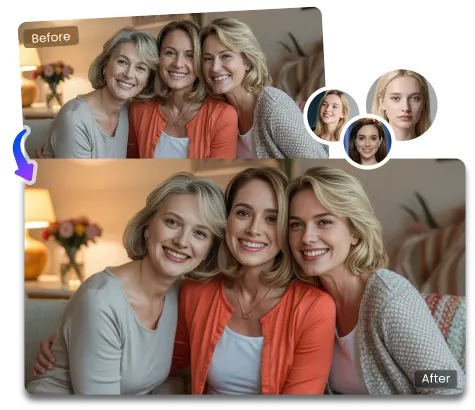
Choose Image to replace one face in a photo, or use Multiple Faces when a group picture needs separate portraits assigned to different people. For repeated edits, the two batch modes answer different jobs.
Single image
Use a source photo and one replacement portrait to change a face in a still image.
Group photo
Detect faces in one picture and assign different portraits to the people you choose.
Batch Images
Apply one replacement face to a set of up to ten source images.
Batch Faces
Create separate tasks from one source image and up to ten replacement portraits.
These modes edit faces in supplied photos. They do not generate new scenes or animate a still image into video. Review each completed image in the result area before downloading it.
ANIMATED GIFS
Face Swap in an Animated GIF
Choose GIF when the source is an animated reaction or short loop. Upload the GIF and a replacement face photo, then select Single Face or Multiple Faces according to the people in the animation. Preview a frame with visible faces before assigning replacements.
Sign in to create the task, then review the completed animation and download the available file. A clear portrait is especially useful when the source has small faces, heavy compression, or fast movement.
BETTER INPUTS
Prepare Better Source Media
A stronger source gives the task more useful information. These checks help you choose what to upload; they are not a guarantee of a particular result or output resolution.
Choose a clear replacement portrait
Keep the full face visible with even lighting and enough detail around the eyes, nose, and mouth.
Inspect the source frame
A face hidden by hair, hands, or a fast turn is harder to identify than one visible throughout the selected scene.
Check every person in a group
Pick a detection frame where all the people you intend to replace can be seen clearly.
QUESTIONS
Video Face Swap Questions
Is the AI video face swap free?
Yes. Sign in, upload a source video and a face photo, and start a free video face swap. You can return to create more free face swaps with other clips.
Can I upload a long video and swap only part of it?
Yes. For a long video face swap, upload the source video, preview its timeline, and set start and end points around the scene you want to change. You can select the whole video or focus on one part of it.
Can I use one photo to face swap a video?
Yes. Upload an existing video as the source and use the photo as the replacement face. The tool edits the face in that footage; it does not turn the photo into a newly generated video.
Can I use video face swap with no sign up?
You can view the studio with no sign up. Sign in to upload media, create a face swap, and access or download your results.
Can I download a video face swap with no watermark?
The web editor does not add a watermark when downloading a result. It downloads the file returned by processing, so check the completed video for any marks already embedded in that file.
How can I get HD-quality face swap results?
Start with clear, high-resolution source media and a sharp replacement photo. Face enhancement can refine details when available. Final quality and resolution depend on the input and processing option.
Start Your Face Swap
Choose Video, Image, or GIF in the studio, add the media you want to edit, and assign the face photo. Set the range for moving media, review the available option, and create the result that fits your scene.